
Solid Commerce has developed a new Dynamic Cost Management premium add-on. This innovative tool enables users to effortlessly monitor the cost of inventory when received, while also empowering them to establish strategic approaches for inventory cost calculation at the time of a purchase. These approaches include options such as average cost, maximum cost, minimum cost, oldest cost, and more.
These cost rules can also be applied to advanced pricing formulas using our new inventory manager or through our Excel plugin. See Steps 5 and 6 bellow.
What we'll cover:
- How to access.
- Manage cost attributes.
- How to build cost rules.
- Assign a cost rule to inventory.
- Apply a cost rule to an Advanced Pricing Formula in bulk through the UI.
- Apply a cost rule to an Advanced Pricing Formula in bulk through Excel.
How to Access:
NOTE: Please reach out to your Growth Advisor or our Support team if you would like us to enable this feature!
The new Dynamic Cost Rules are located under Inventory>>Inventory rules>>Dynamic Cost Rules
If the add-on is enabled, you will see "Dynamic Cost Rules" under the Inventory tab:
On the main screen you have two options:
-
- New Dynamic Cost Rule
- Manage Cost Attributes
Manage attributes:
There are 2 type of elements that can be used to calculate cost.
1. Cost Attributes
You first create cost attributes by going to:
Inventory>>Inventory rules>>Dynamic Cost Rules >> Manage Cost Attributes
Here you can add a cost attribute name and a value. These attributes can be used system wide when a single value is needed for all items. This feature ensures consistency and accuracy in cost calculations across different inventory items.
Its important to note that any change in these values will automatically update all formulas that include the modified cost attribute.
2. Product Attributes
These values are product specific and will recalculate the Dynamic Cost when changed. See Creating and Using Custom Product Attributes to learn how to create product attributes. The value of the product attribute needs to be numerical.
How to build Cost rules:
After clicking New Dynamic cost rules, you will see pop-up message where you can:
- Add Rule Name
- Add product attributes and cost attributes to the formula
Note: Cost formula taking cost as average
After adding all attributes, you can click the "Create" button and the new rule will be created.
Assign a cost rule to Inventory:
A cost rule is an inventory level field, so go to the desired warehouse in the Inventory Manager.
Filter items or search for a specific item and select the item(s).
Then click "APPLY COST RULE", select the Cost Rule and click APPLY
When Rule is applied, the cost field will be greyed out and the Pencil Icon will appear.
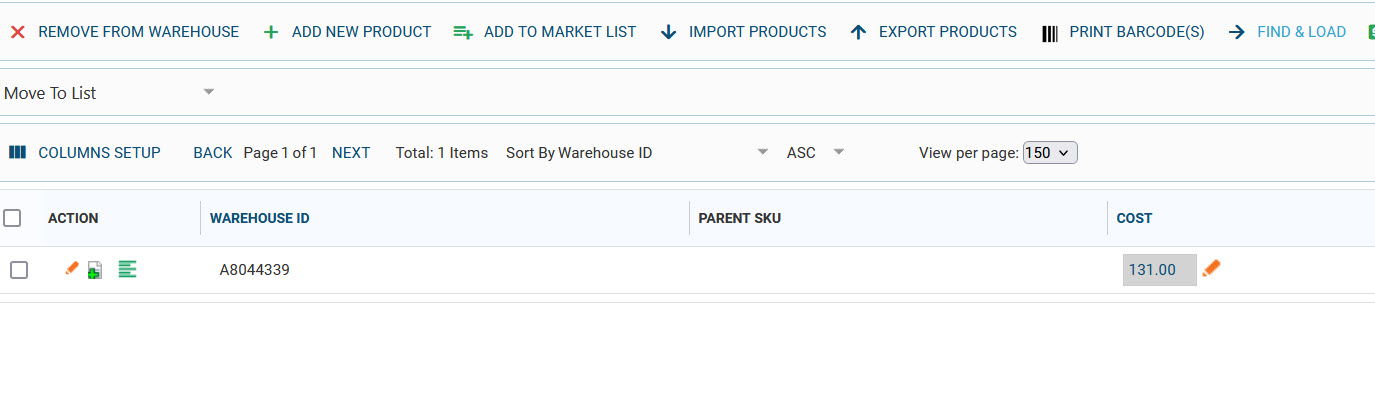 When You click on the pencil icon:
New pop up will appear where you can view:
- Last 10 inventory updates
- Which Cost rule applied
- Add new Inventory
Apply a Cost Rule to an Advanced Pricing Formula in bulk through UI:
A Dynamic Cost Rule can be used in a Pricing Formula opening up new possibilities. You can use a Dynamic Cost Rule plus any combination of math expressions and product attributes. You can also use prices used on Amazon.
- Go to Inventory >> Inventory Manager (New)
- Click on Listings
- Seach for the SKU(s) that you want to apply a rule to.
Apply a cost rule to an Advanced Pricing Formula in bulk through Excel:
Once you have created a Dynamic Cost Rule, you can apply it to multiple items via our Excel Plugin Tool.
- Go to Inventory >> Inventory Rules >> Dynamic Cost Rules
- Copy the name of the cost rule
- Add it to excel under the column header "market item formula"
- In Excel click "Upload Data"
- Select Upload to Marketplace and click confirm.
NOTE: "market item formula" is a marketplace level field and uploading trough excel will need all required fields.
Assumption:
- If the rule applied, Field qty will not be working, you will receive error in excel
- qty delta without cost impossible to add (will be error)
Troubleshooting:
Error: Failed to import inventory item: Cannot change Qty directly for item with assigned Dynamic Cost Rule. Please use DeltaQty instead.
- Fix: You will need to use the Qty Delta (Quantity Delta) header to update the quantity, and also add Cost. This way the product and cost will correctly be recalculated.
Comments
Please sign in to leave a comment.